
Intro
Kosovo Wallet provides you with a series of features that can be used to keep your certificate credentials safe and protected on your device, organise credentials and use the credentials in applications that are in the Kosovo eID ecosystem and offers strong authentication with Kosovo Wallet.
Features
After the wallet installation is complete, you will get access to the wallet features which are:
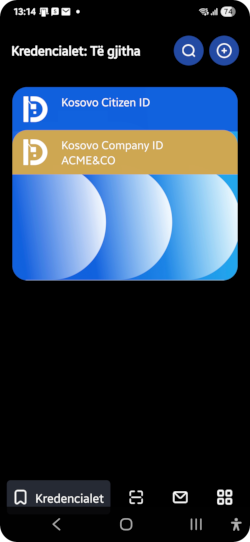
Show credentials: displays the list of the credentials that you have in your wallet. In the context of eID, you shall haveone digital ID credential(illustrated as ablue card with blue header) and (if applicable for you)one or many digital seals credentials(illustrated as ablue card with golden header)Show credential: displays a selected credential from the list of credentialsScan QR: allows scanning the QR code generated for the strong authentication with the walletNotifications: displays the notifications received by your Kosovo walletSettings: allows you to see or set some parameters for your Kosovo Wallet
Except for Show credential feature, all wallet features can be used by tapping on the related icon on the bottom menu bar. Show credential feature can be used by tapping on a specific credential from the credentials list.
Show credentials
This feature displays the list of the credentials that you have in your wallet. In the context of eID, you shall have one digital ID credential (illustrated as a blue card with blue header) and (if applicable for you) one or many digital seals credentials (illustrated as a blue card with golden header). The list of credentials is the starting point from which you can further select and manage a certain credential.
Show credential
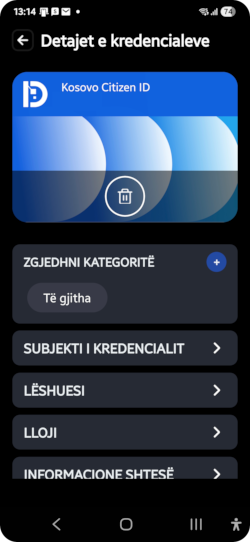
This feature displays a selected credential from the list of credentials. Here you can visualise all data related to the selected credentials and its linked digital certificate. Visualisation of the data can be made by expanding the categories shown under the credential card.
Here you can also remove a credential from the wallet. You will notice a Delete icon shown on the credential card. Tapping on the icon and confirming the removal will have as result the removal of the credential from your wallet. You will not see the credential anymore in the list of credentials.
There is no way to use the wallet to undo a credential removal,
Do not panic if you removed a credential by mistake. You can always use the self service portal to reconnect your wallet with the related certificate and get back the credential in the wallet.
Scan QR
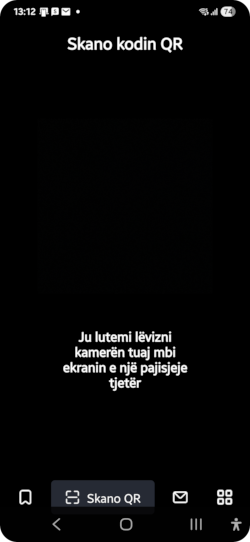
This feature allows you to scan the QR code generated for the strong authentication with the wallet and to complete the strong authentication flow.
Notifications
This is the place where wallet notifications are shown. Notifications can be sent by various applications that are integrated with Kosovo wallet. The most relevant example of wallet notification is the one received at the end of the enrollment process or when you connect the wallet with a certain certificate using the self service portal. In the mentioned cases, you will receive a notification that a new credential was issued for your certificate and it is time to store it in the wallet. Tapping on the notification will save the credential in your wallet and you will be able to see it in the credentials list.
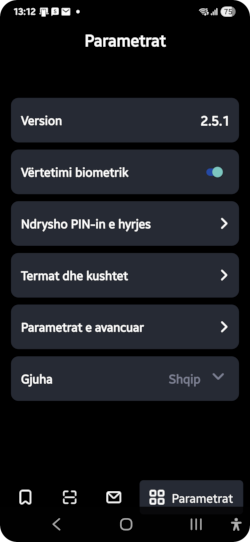
Settings
This feature allows you to see or set some parameters for your Kosovo Wallet.
The parameters are:
Wallet version: shows the version of the Kosovo wallet installed on your mobile phoneBiometric authentication: enable/disable biometric authentication to your wallet (finger print or face recognition)Change access PIN: allows you to change the PIN used to authenticate to your walletTerms and conditions: shows the terms and conditions for using Kosovo walletAdvanced settings: a group of additional settings detailed belowLanguage: set the wallet language (Albanian, Serbian or English)
We highly recommend to protect your credentials with your biometrics and to keep Biometric authentication enabled at least for finger print. This will make your wallet even more secure.
The Advanced settings are:
My ID: displays a series of public information about your wallet.Update credential status: updates the status of all credentials stored in your wallet. For example, if you revoke your certificate using the self service portal, the status of the related credential will not be automatically updated. You will not be able to use it anymore for signing or for strong authentication, but in the wallet the relate credential may still be shown as active. Using this feature you can update the credential status at any time.Delete user: This will clear the whole content of your wallet. Please use this feature with care. Restoring the list of credentials after using this feature means to use the self service portal for each certificate and re-connect the wallet with each certificate
On this page