
Intro
The self service portal is the tool that allows you to manage your certificate(s) and to migrate the wallet when you change your device. To access the self-service portal you would need the certificate information that you received during the enrollment process (the certificate user name and password). The self service portal can be accessed from any browser, from desktop and from mobile devices.
Lost info
In the case when you did not save the certificate information, the self service portal allows you to change or recover the missing part of the certificate information. What you need to always remember is the email used for enrollment and your Kosovo personal number. Using this information and following the instructions you can recover the Emergengy Recovery Code (ERC) and your user name or you can reset your password.
Be aware that the certificate information belongs to a specific certificates. For example, if you have one digital ID and two digital seals you will have 3 sets of certificate information (user name, password, ERC).
Functionality
Profile info
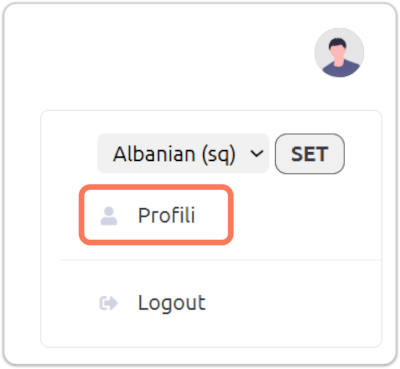
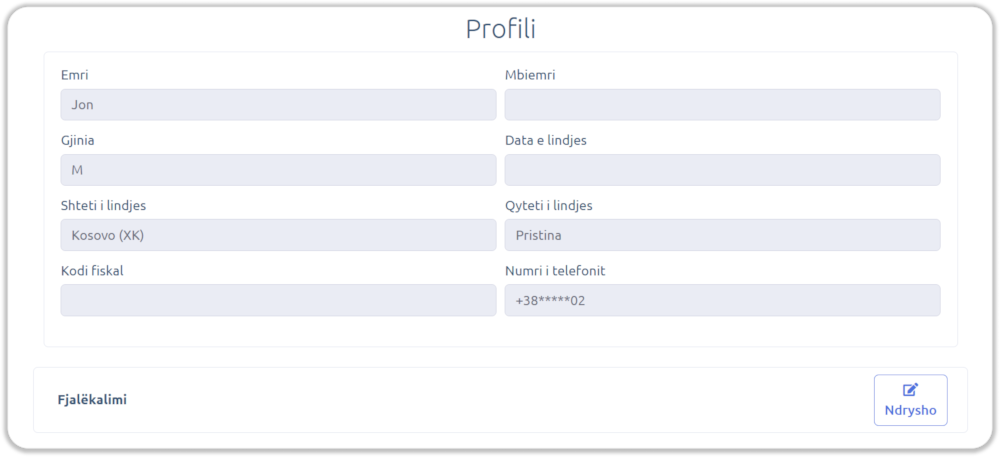
You can see your profile information by accessing the related option after click on the user icon on the top-right of the screen.
Your profile information is encoded in the certificate at enrollment time, thus you are not allowed to modify it in the self-service portal. The only information related to your profile that you can modify is the password for accessing the self-service portal.
Security info
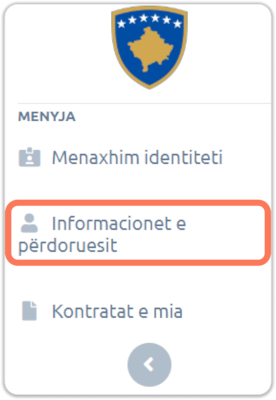
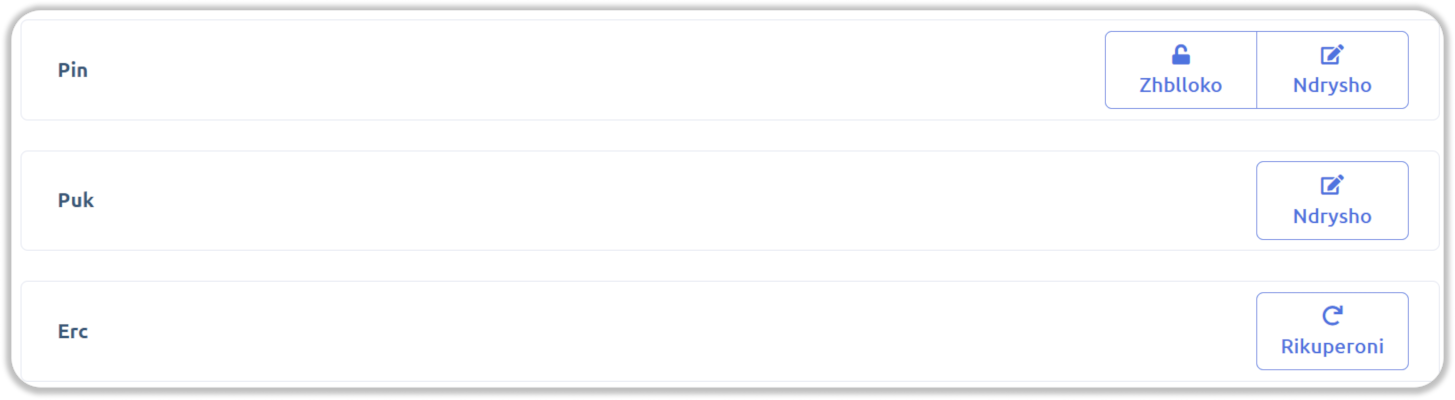
You can manage the certification security information by clicking the User Information option from the left sidebar menu. Using this option you can change the PIN or PUK and you can recover the Emergency Recovery Code (ERC) as well as you can unlock the PIN in case it was locked by 3 times wrong PIN usage.
Manage certificate
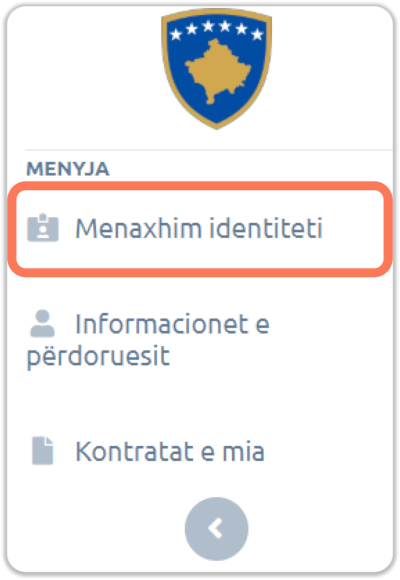
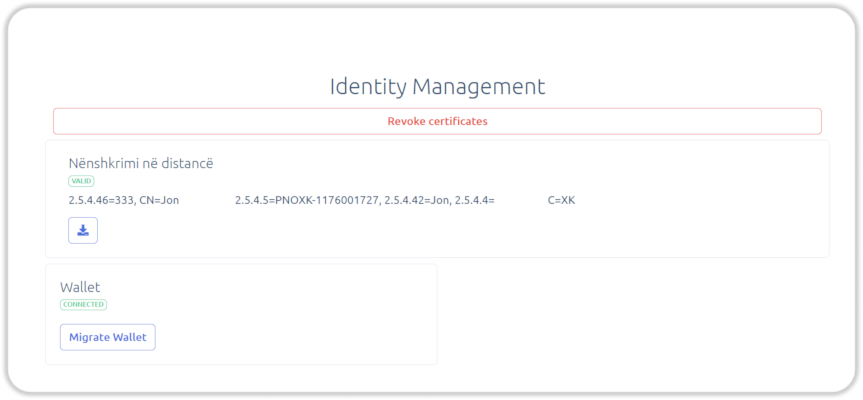
You can manage the certification security information by clicking the Identity management option from the left sidebar menu.
The operations that you can do are:
Revoke certificate: revoke your certificate in case you believe it was compromised or if you simply don’t want to use it anymore- Download your certificate: download a local copy of the certificate
- Connect or
Migrate wallet: connect your wallet if you did not do it during enrollment or move the wallet on another mobile phone
Be aware that a certificate credentials can be active on a single mobile phone. Migrating the wallet to a new phone will automatically disable the certificate credentials on the initial one. Be also aware that the phone on which the certificate credentials is stored must have the phone number you were using during the enrollment.
Be aware that there is no way to un-revoke a revoked certificate. You may have to pass again through the enrollment process at one ARC or ARBK office to get a new certificate.
Certificate contract
You can access and download the contract between you and the Government for using the certificate by clicking the My contracts option from the left sidebar menu. The contract is in PDF format and is signed with the certificate during the enrollment process.
On this page