
Intro
We provide the possibility to sign documents both on desktop or laptop as well as on mobile devices. Signing a document on desktop or laptop involves the usage of the signature features provided by different applications (Adobe or Office or similar). Our desktop signing app is only facilitating the signing process by ensuring the verification of the used certificate each time when is used for signature. The desktop signing app will always check if the certificate is valid at the moment of signing and will ensure that the person who signs is the owner of the certificate by requiring the input of a One-Time-Password before applying the signature.
Since the mobile apps are, usually, not providing signing features, additional to the certificate verification and One-Time-Password, the mobile signing app provides full signing features.
What can be signed
Technically, any type of document can be signed since the most frequent signature standards (PAdES, CAdES, XAdES) are provided.
Except for the case when the used app (such as Adobe Acrobat or Microsoft Office) provides features to visualize a signed document and the signature(s) applied to it, the result of the signing process will be an encrypted file that cannot be open in a classical way (using its specific app). First, a special app must be used to extract the original file from the encrypted signed file and, second, the file can be then open with its specific app.
Only PDF signing will provide the feature of signature visualisation in a graphical way on the document. The way in which the signature marker will be visible on other types of documents depends on the specific signature feature provided by the app used to sign.
Only PDF files allows multiple signature since Adobe Acrobat signing feature allows this. Other apps (files) may not allow multiple signature. For example, Microsoft Office files cannot be signed multiple times, each new signature will automatically remove the existing signature on the document.
Currently, the One-Time-Password needed for signing is sent by SMS to the mobile phone number used during the eID registration/enrollment process. You need to have the mobile device with that phone number active when signing, otherwise, signing will not be possible. The phone number associated to a digital eID certificate cannot be changed.
Sign
Desktop
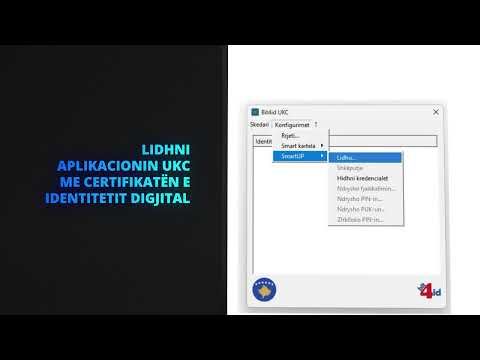
After installing the desktop signing app, follow the instructions from the next video to understand how to use this app to sign documents.
Mobile
After installing the mobile signing app, follow the instructions below to understand how to use this app to sign documents:
- open the Kosovo eSign app and go to
Identitytab (bottom of the screen) - click
+sign and add your identity (you need the certificate username and password which you received during the registration/enrollment process) - go to
Settingstab (bottom of the screen) and setEnable graphic signatureandAuto georeferencing(if not already set)
You can add as many identities as you have. For example, you can add your eID and all your digital seals.
To sign:
- open the Kosovo eSign app, go to
Hometab (bottom of the screen) and selectSignfrom the tool bar - select the file you want to sign
- select the signing standard (we recommend PAdES for PDF files and any other one for other files)
- check
Apply Timestampif needed (we recommend to check it) - tap
Next - for PDF filed you will be required to place the signature on the document
- input the certificate PIN code and
tap the arrow icon on the right of the PIN input form - wait for the One-Time-Password and input it
- save the signed document
Support
We offer technical support for users of signing apps.
On this page